In the process of trying to understand a new element to my DJI Mini 4 Pro, I’ve learnt a couple of things, so I thought I’d share them in the hope that anyone on a similar journey might benefit. I recently acquired a microphone for my drone. A third party device, made by Hollyland. It’s called the Hollyland Lark M2. I was assured by a YTuber that it works seamlessly with the Mini 4 pro, but what he didn’t do is explain the finer, crucial details about saving, copying transferring etc. In the box, you get a receiver that plugs into the base of the RC2. You also get 2 mics on magnets that can be attached to you in 3 different ways. The mics and the receiver need to be synchronised.
-
Start a screen recording on the RC2, just as you are about to take off. This is done by swiping down twice to get the menu, where screen recording activation is found. This then gives the user a screen recording of what the drone is filming, whilst also creating an audio file of your voice (if required, and/or surrounding sounds, such as maybe wind, waves etc). It doesn’t record where the drone is filming, only where you are.
-
Once you have stopped flying, stop the screen recording. (There is a little icon on screen in red). A screen/audio file is generated. This screen/audio file is stored in the internal memory of the RC2. If, like me, you are a Mac user, navigating around an android internal root file structure is a challenge. In order to use the sound from the screen recording, one has to take the file off the RC2 and separate it from the screen recording, then add it to where ever you plan to use it with the hires film taken on the drone. ie in DaVinci or perhaps iMovie. Take the microsd card from the drone and put it into the RC2 slot
-
On the RC2 screen, swipe down twice again, press the hexagon icon top right. This shows a list of files. Its not intuitive, so go to Storage, Music and Audio, press Audio, which then brings up a list of sub folders. Press videos and in here will be your low res screen recordings. Press each file for a second so its highlighted in blue, then go to the 3 dots top right of screen, open the little list and press ‘copy to’ and then press the blue ‘copy’ tab to send the files to your sd card. Put your sd card into a reader and hopefully all your files generated from that flight will be in one place.
If you want to download straight from the RC2, using a USB-c cable, then there is a way. There is a free, downloadable app, called OpenMTB, which works for both Mac and PC. Go to the website and download the version that fits your computer. Plug the RC2 into your USB-c port on your computer. Open the app and this opens a split screen of the file structure where your screen recordings are kept and your desktop. Drag them off to wherever you want. In order to extract the audio from the screen recording file, in Mac, open Quicktime and from the drop down menu, go to file, save as Audio file only. For PC there are a number of different apps but Movavi is one I know.
- Here is one way:
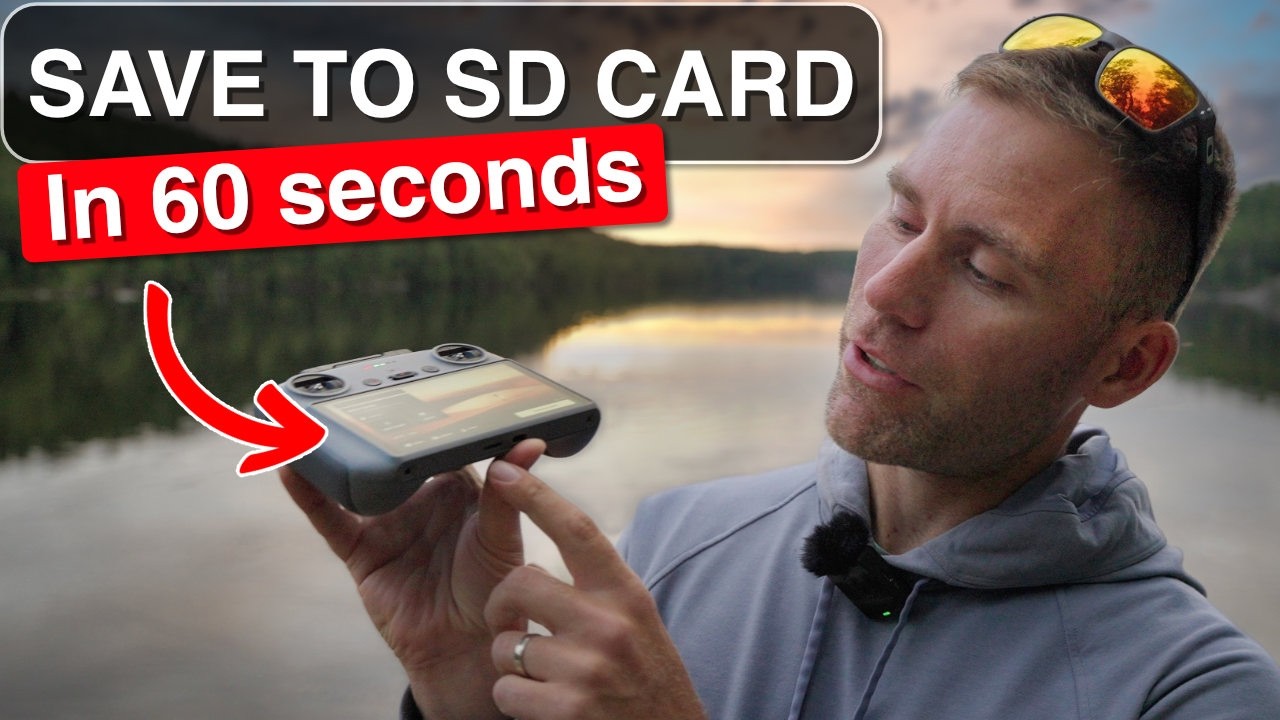
- For another visual: type: ‘How to Export Screen Recordings from DJI RC2’, into your search engine and find it on Youtube. I tried copying the link but it doesn’t like it!