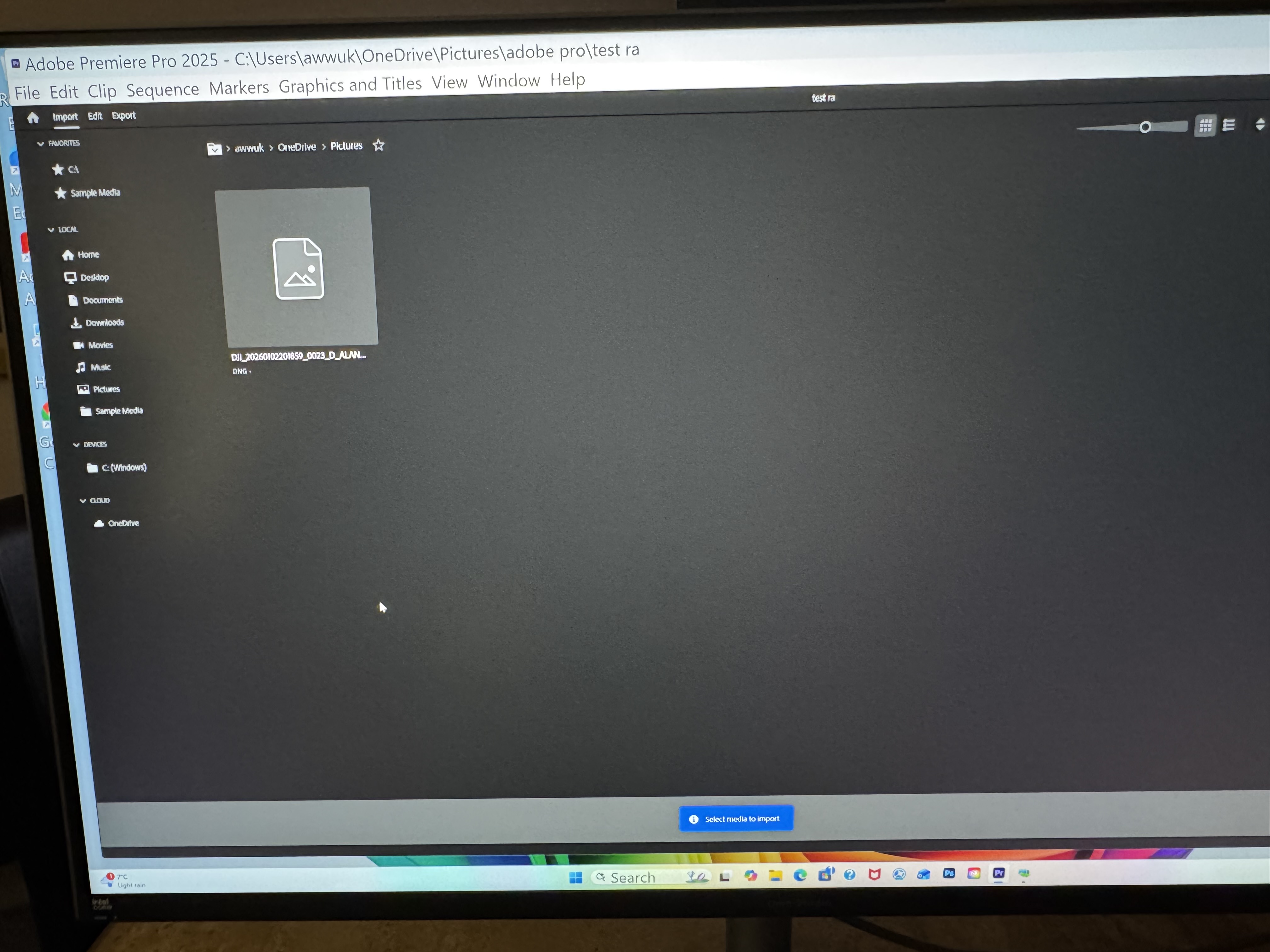
My main computer is a M 4 Mac mini, however I have been given my daughters laptop (windows11 I think), is there anyway to disable one drive? As it’s a right pain in the arse. Last windows computer I had was running NT, that wasn’t too bad.
You’ll need to right click on the folder which contains your videos and select “Always keep on this device” and wait for a few minutes for the videos to download to your computer. Other programs should be able to see them now. By default, OneDrive files are kept in the cloud to save space on your machine.
I think the file you’ve shown in your screenshot is a photograph rather than a video? Double check you’re trying to open the correct files as well.
Tried all the suggestions, but still no joy.
The picture was of my screen when opening Premier pro, new project, import files (video / pictures), i don’t have the option to add files from my hard drive.
No i copied to my HD, i will try direct from my HD.
I wrote to DJI and they responded same day so i will try that tonight.
I will copy their e-mail below incase anybody else is having similar problems.
“ Thank you for the detailed information and for your patience.
First, it needs to be clarified that: DNG / JPEG (RAW) are photo formats, not video formats. DJI drone(such as DJI Mini 5 Pro) video files are recorded in MP4, using H.264 (AVC) or H.265 (HEVC) codecs. So if the files you are seeing are .DNG, those are photos (RAW images) captured by the drone, not video clips.
If you are using Premiere Pro, clicking “Import” in the project and selecting the directory will only show MP4/JPG format images, you cannot import other image/video formats.
We suggest instead of using the Import menu, please drag and drop the DNG files directly from PC Explorer into the Project Media Bin in Premiere Pro. Like below: