I have seen this on multiple YouTube videos with various drones, including the Mini 5 but cannot see how to enable it anywhere ?
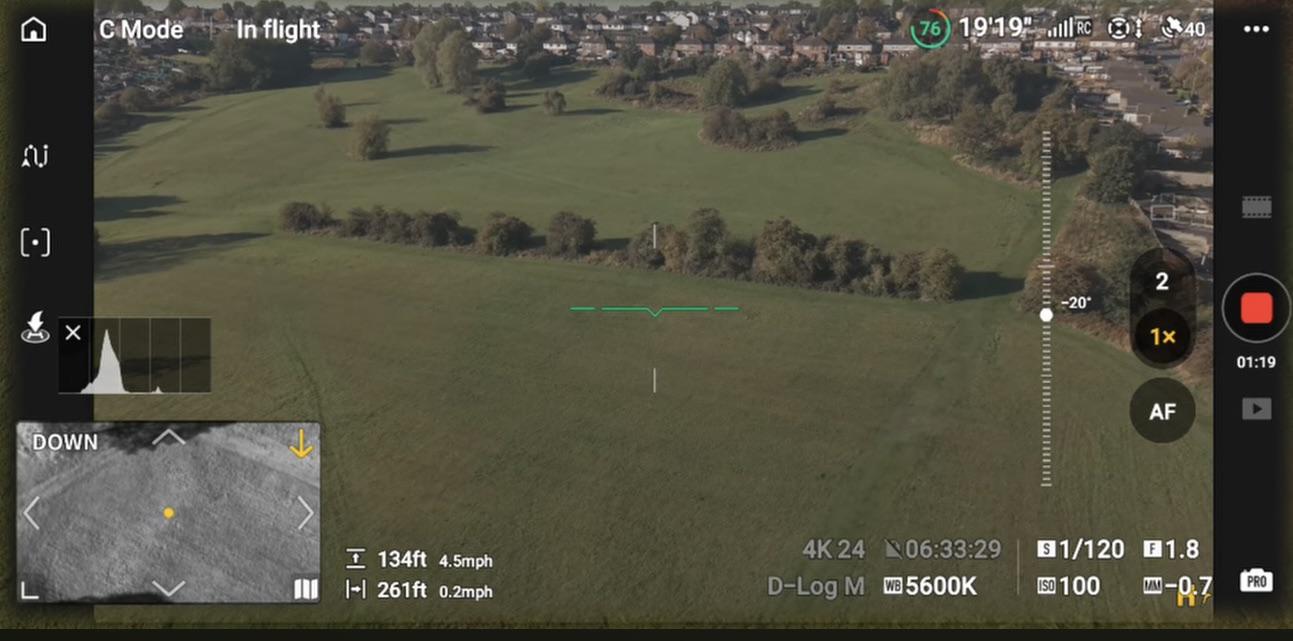
Only time I’ve seen it is in one of @ianinlondon’s videos and he’s using an RC2 Pro. Wonder if it’s specific to that controller, maybe?
(edit: or it’s on mine and I’ve never noticed it… which is always possible  )
)
Don’t you just click on the map and swap it out for the compass?
Or anything other than the map in the corner?
Ahh… not something I do very often at all. Sounds reasonable 

It used to be overlaid in the compass view, didn’t it?
Maybe swapping the compass out for a camera / sensor view is enough to display the line in the middle of the screen?
Tried all sorts of combinations without luck. Oh and I do have the RC2 Pro and Pro 2 and can’t get it on either.
Sure if you message @ianinlondon he will be glad to help
I have it on mine.
Don’t recall enabling it.
However I did look at the alternatives in the bottom left, including switching it to the main view and rear camera etc.
So not sure if it is there.
I had it as standard on the rc2 that came with the mini 5
Here are the steps to enable the green line:
- Open the quick settings panel: On your DJI RC 2, swipe down from the very top edge of the screen to access the quick settings menu.
- Locate the horizon line icon: Look for the icon that represents the horizon or level indicator.
- Tap to enable: Tap the icon to activate the green horizon line on your screen.

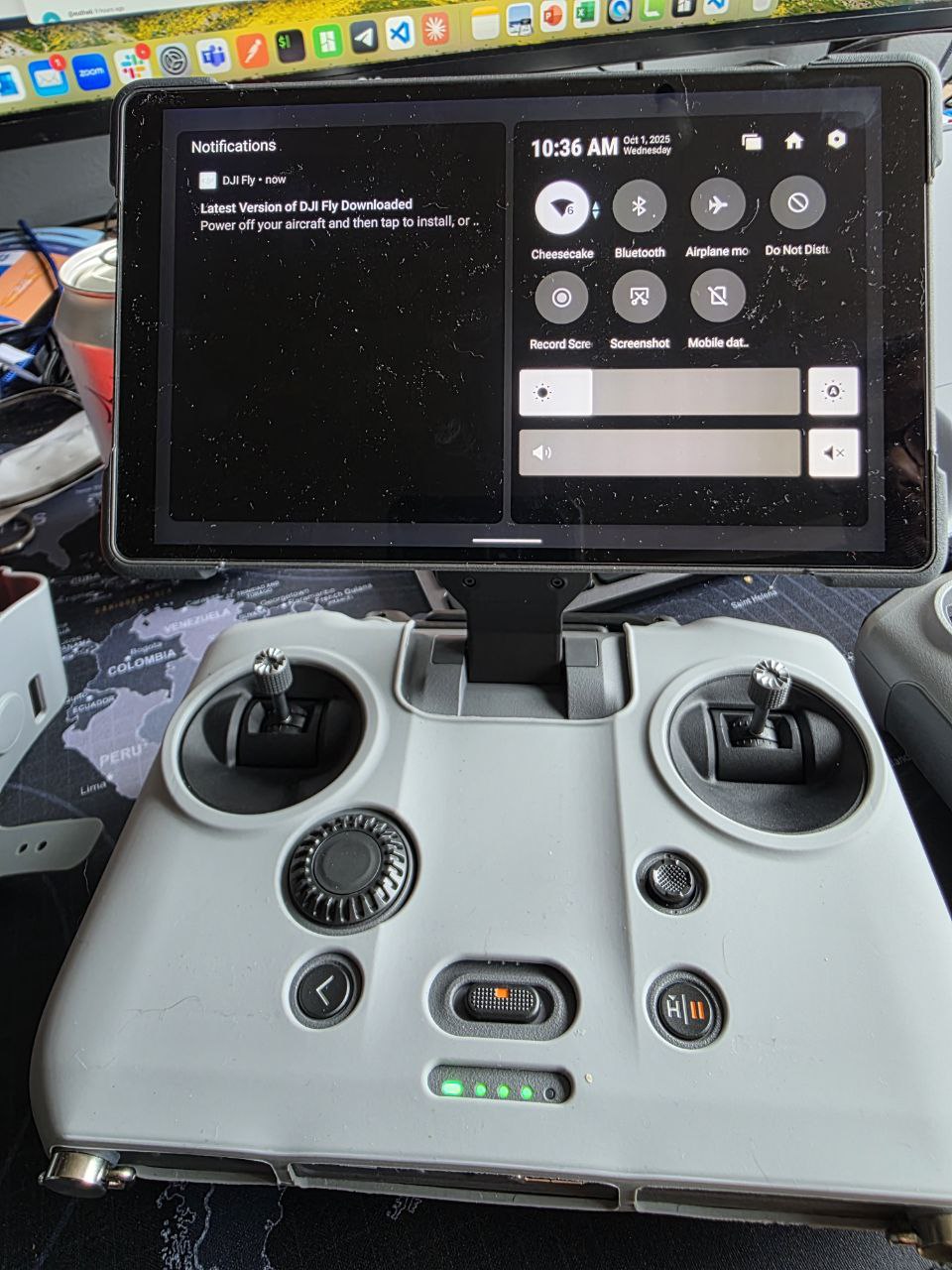
Not an option on mine. 
Hmmm curious, needs more investigation 
Try having a look in the camera settings,
I’m guessing you may have to have both drone & rc on / paired,
I’m not on Facebook but when I put it in on google someone was pretty much asking the same question, worth a try if you’ve not all ready.
Says as below from DJI - this person wanted to turn it off,
The green line in the middle of the DJI -
Mini 5 Pro remote controller screen is a horizon reference line (level indicator).
It helps you keep your videos and photos level during flight or shooting.
We recommend using this line to adjust the drone’s attitude before flying or filming to ensure smoother and more stable footage.
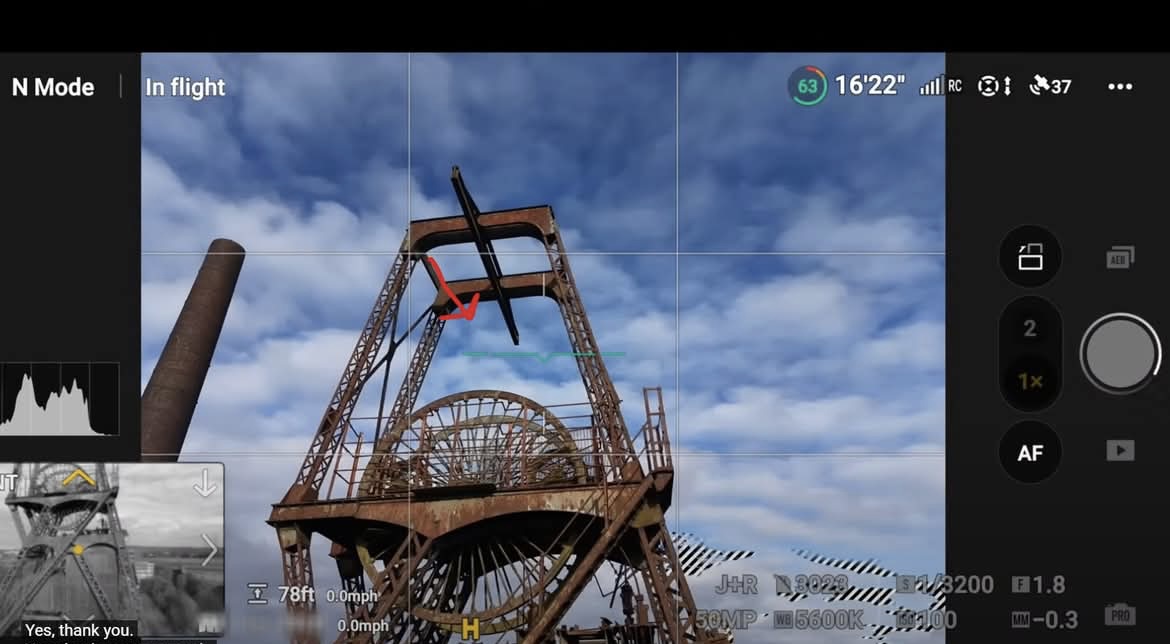
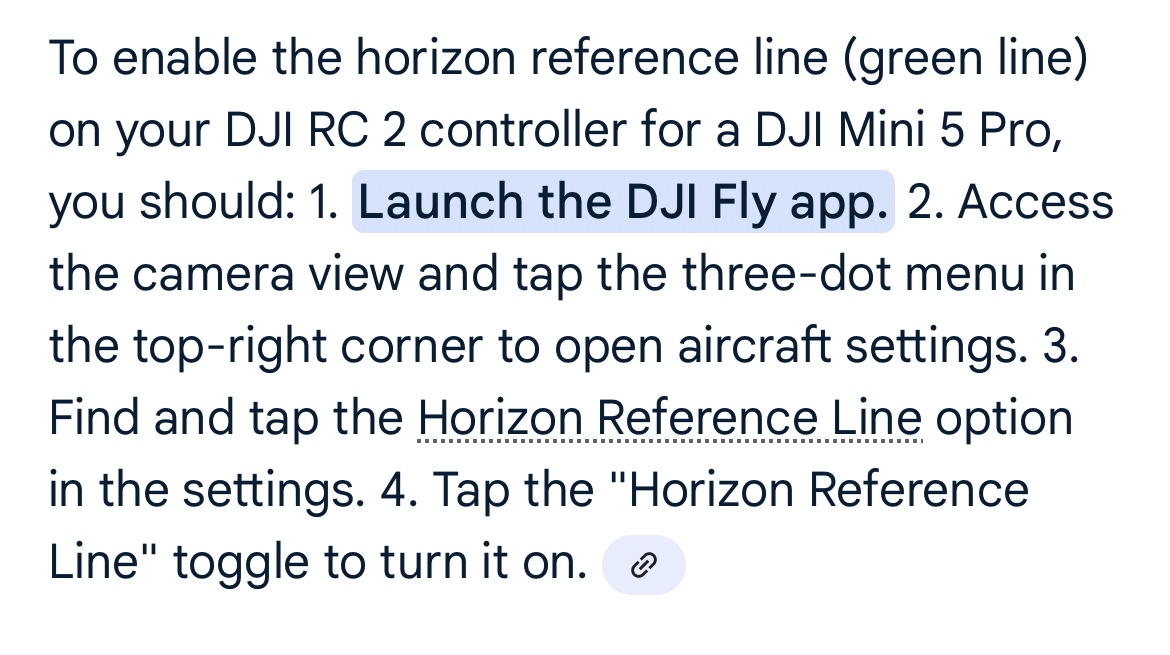
Yea saw that too - no such setting (current firmware).
It is turned on by default on my RC2 remote for my Mini 5 Pro and I cannot see a way to turn it off.
It is not on the RC2 remote for my Mini 4 Pro.
I presume it is switched on for drones that have flexible gimble rotation (i.e. not the 90-degree, portrait-landscape switching but the gradual camera rotation feature) so that you can see where the horizon is if you have partially rotated the gimble. Therefore, I think you would only see it on the Mavic 4 Pro and the Mini 5 Pro.
Which drone are you flying, @Gomjaba?
Ill have a poke around in my setting in a bit.
I know its on a standard with the mini 5, rc2 running day 1 software.
Mini 5 Pro as well as the Air 3s with both the RC2 and RC Pro 2 … neither shows it in any configuration, nor can I see a setting.
Edit: ACTUALLY - it appears on the RC Pro 2 but not RC2 using the Mini 5 Pro
On the RC2, have you tried rotating the gimbal to see if the horizon line appears? By default, I think that involves holding C1 and using the right shoulder dial on the controller.
It was already active on my mini5 pro with the rc2