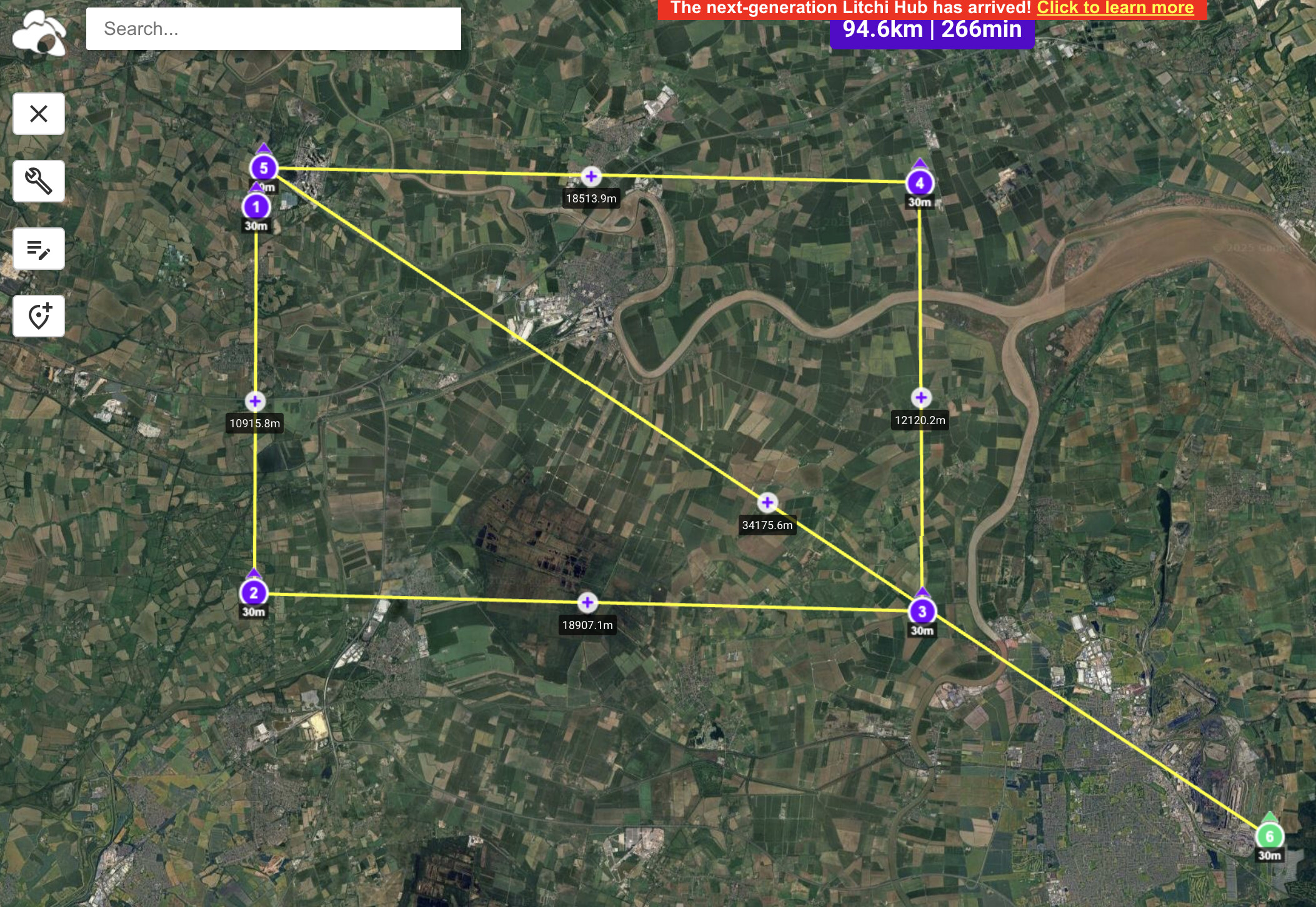
As Litchi doesn’t have access to the Mini 5 Pro’s SDK, there is no direct method of flying a Litchi waypoints mission on a Mini 5 Pro, so I rather got out of the habit of using waypoints.
Having slimmed my fleet down to a Mini 4 Pro and an Air 3S, I decided to re-visit my two main methods of creating and flying waypoints missions: using Litchi’s waypoints or using DJI’s built-in waypoints. In both cases the missions were imported into DJI Fly on an RC Pro 2 controller, and flown from DJI Fly’s waypoint interface.
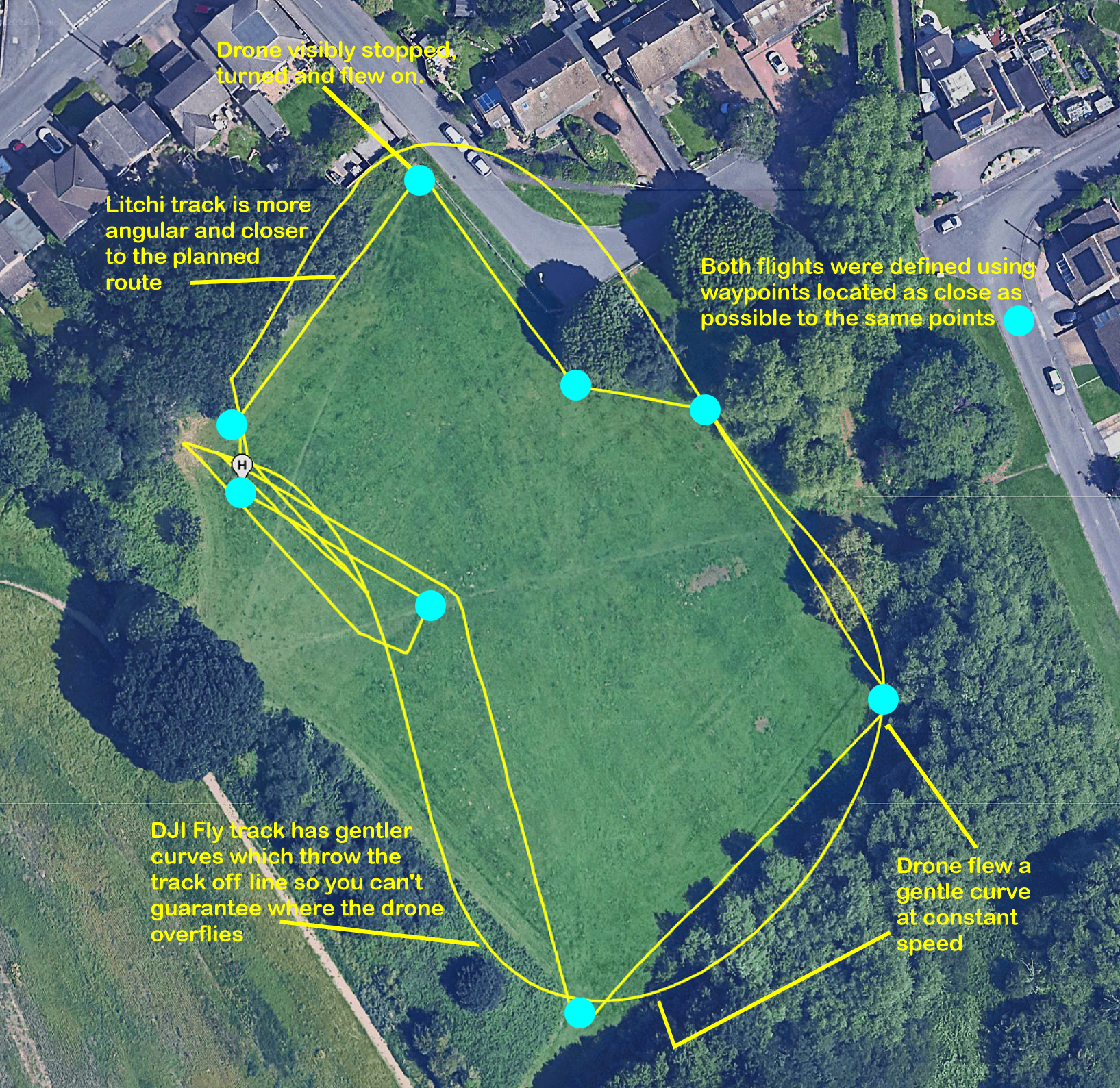
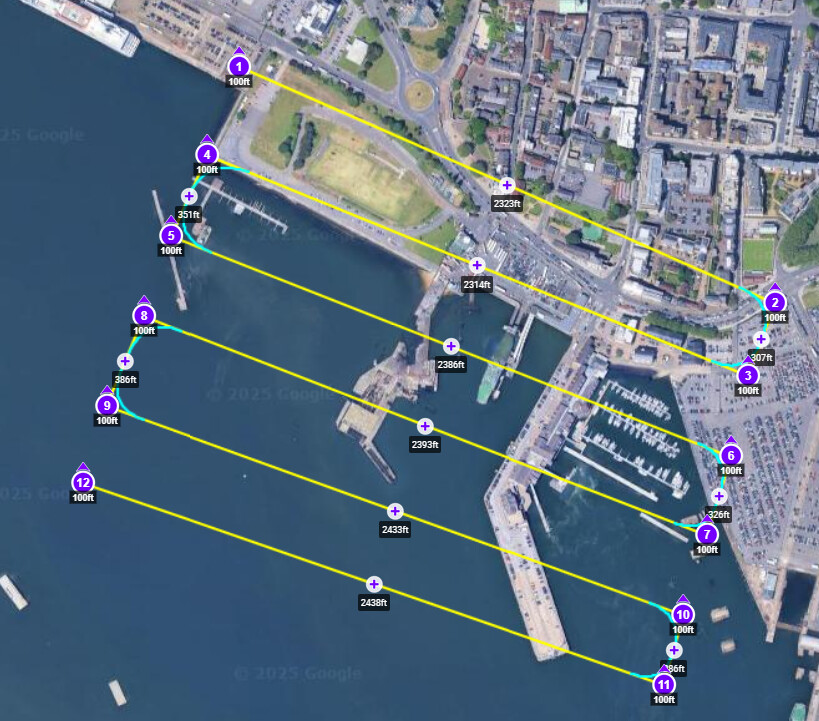
To compare the two, I set up two missions at my test site, trying to replicate the location of each of the waypoints are closely as possible. I then ran the two missions and recorded what actually happened, as shown on the Airdata plot below:
Column 1
Column 2
Column 3
step
DJI Fly
Litchi
Placing waypoints on the map
Use a Bluetooth mouse on the controller to place and adjust each waypoint.
Use the Litchi Hub on a PC, giving access to a large screen and precise positioning.
Saving the mission
Mission plan is saved to Android storage (Android->data->dji.go.v5->files->waypoint)
Mission is automatically saved to Litchi cloud and KMZ file can be downloaded via web browser
Loading the mission
Already in the controller: use waypoints icon and the files icon top left of waypoints control panel to view missions. Click to select the desired mission.
Create a dummy waypoints mission with at least 2 waypoints in DJI Fly.Find the saved dummy mission in Android file system. Copy the filename of the dummy mission’s KMZ file and use it to replace the filename of the downloaded Litchi KMZ file. Now replace the dummy mission’s KMZ file with the re-named Litchi one.
Running the mission
In both cases, the mission appears in DJI Fly’s list of missions. Click to select, check the parameters, check the flight environment around you and click GO to start.
PROs
Relatively easy. Uses software you already have. Could be set up in the field.
More comprehensive set of parameters. Same mission can be downloaded to several controllers. Flight paths can be set to be straight
CONs
Drone’s track is curved, and it is difficult to predict exactly where the drone will go. Mission is specific to the controller that created it.
A bit of a faff. Needs (free) third-party software. You need to create a dummy mission for every real one.
To compare the two, I set up two missions at my test site, trying to replicate the location of each of the waypoints are closely as possible. I then ran the two missions and recorded what actually happened, as shown on the Airdata plot below:
This is a rather interesting experiment; thanks for sharing your research Bryan. I guess which is more suitable depends on what your waypoint mission is? The DJI one may be considered a more cinematic result, whereas the Litchi one may be better for flying a precise course through obstacles, more efficient for still photography, or perhaps even maximising flight time?
I tried waypointmap.com which works quite well.
There are the instructions to load the plan manually, but if you subscribe there is also an uploading app
Depending upon what I am trying to achieve determines whether I use Litchi, the built in one now I know to use a bluetooth mouse, or waypointmap.
The many different types of mission creators in Litchi, such as a Spiral I am using to film cooling towers, are good. waypointmap I use for grid flights to enable 3d modelling afterwards, or repetitive circular poi type filming (Churches etc).
The toughest part to get right I find, is camera angle relative to altitude. I generally set altitude around 50m, and there is a difference between 45 and 34 degree camera angle which prevents clear comparison, when that is what I want to achieve.
To reduce the impact of a sweeping flight path, and to “straighten” the turns when required, I now place waypoints close together at the turns, instead of just a single waypoint. Sometimes though, sweeping turns work better.
Not true, in my case anyway.
Missions created/edited on my RC pro 2 automatically appear on my RC2 controller. The resulting flight carried out with either my mini 4 or mavic 4 are identical.
The more I use waypoints, the more I discover they can do.
Thank you for taking the time to research and share this with the group. I hadn’t realised that Litchi Hub was free to use. I’ve been thinking about use of photogrammetry for the inspections I make of buildings, so this will be an interesting piece of software to investigate more.
Were you saying that if a waypoint mission is created in Litchi Hub that it was not possible for the Mini 5 Pro to use the renamed KMZ file if it was uploaded to an RC Pro 2 (to replace a ‘phantom KMZ file’)?…or were you just saying that the Litchi App cannot be used directly with the Mini 5 Pro?
Do you know if the Air3S works directly with the Litchi App (ie not the Litchi Hub)?
The Litchi Pilot software is a replacement for DJI Fly i.e. it is loaded onto your Android device and it directly controls the flight of the drone. It won’t work with a Mini Pro 5 and although it runs on my RC Pro 2 there is no video feed, so you are flying blind, which is never a good idea.
So the “phantom mission” method is the only one that I have got to work. Only tried it with my Air 3S and it works well once loaded up.
I used Waypoints.com on a PC to set up a mission to practice learning how to do photogrammetry.
I defined the area I wanted to cover and accepted the settings.
Likewise you have to install it into an existing mission. This was done via a USB cable to RC,
I have yet to try Litchi but it sounds very similar
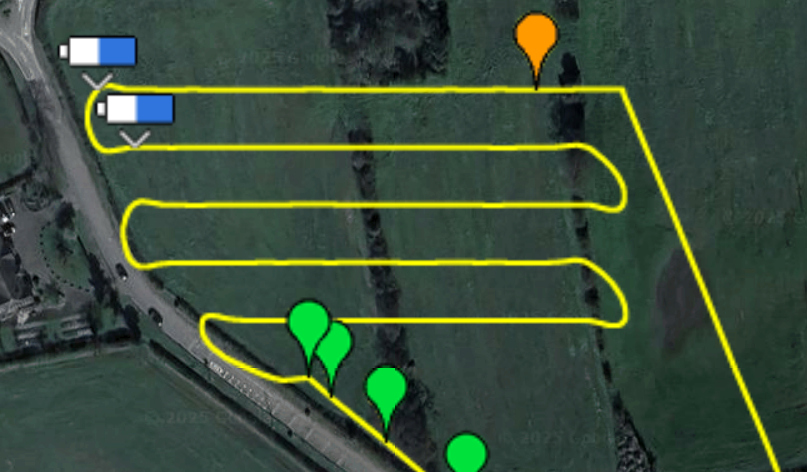
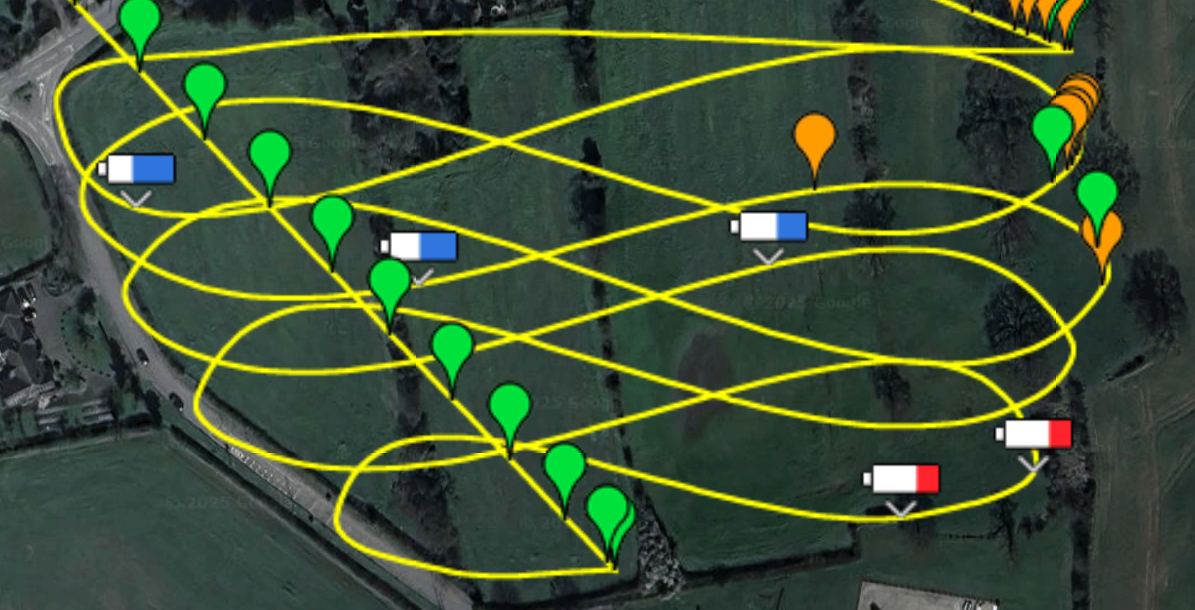
litchi produced this instead. No doubt it could be improved by tweaking settings, but waypointmap needed less messing about. I am sure it also depends on what drone is being used, so litchi may give different results on drones other than my mini 4 pro and mavic 4 pro.
That is a useful thread thanks @milkmanchris .
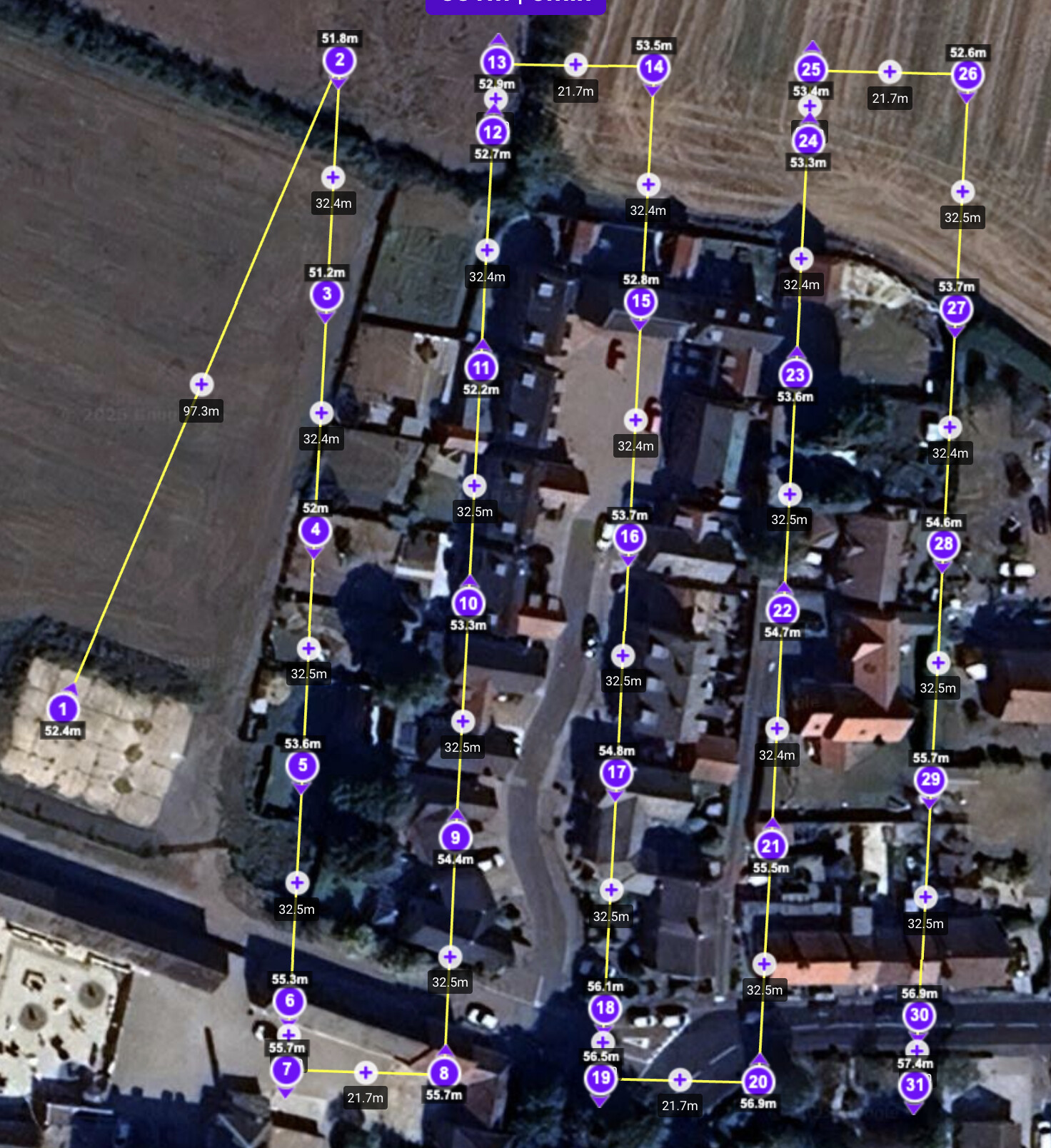
I think I compounded my curvy output by not having enough waypoints. I just had the end points of each straight line marked.
I’m working through making a litchi mission to spiral around and between some cooling towers nearby at Willington. Much easier than doing it on the controller.
That was another good thread. Your 3 videos on there are all good. The first one shows a lot more of the infrastructure between the towers, which Willington lacks, and had me wondering what the door holes were for part way up the towers.
After Willington is under my belt, I may brave a live set of towers at Ratcliff. The steam adds so much to the video doesn’t it, especially as it felt like you were going to fly through it at one point!
Well done.
Imagine the archiving costs on here if all of these videos weren’t hosted externally.